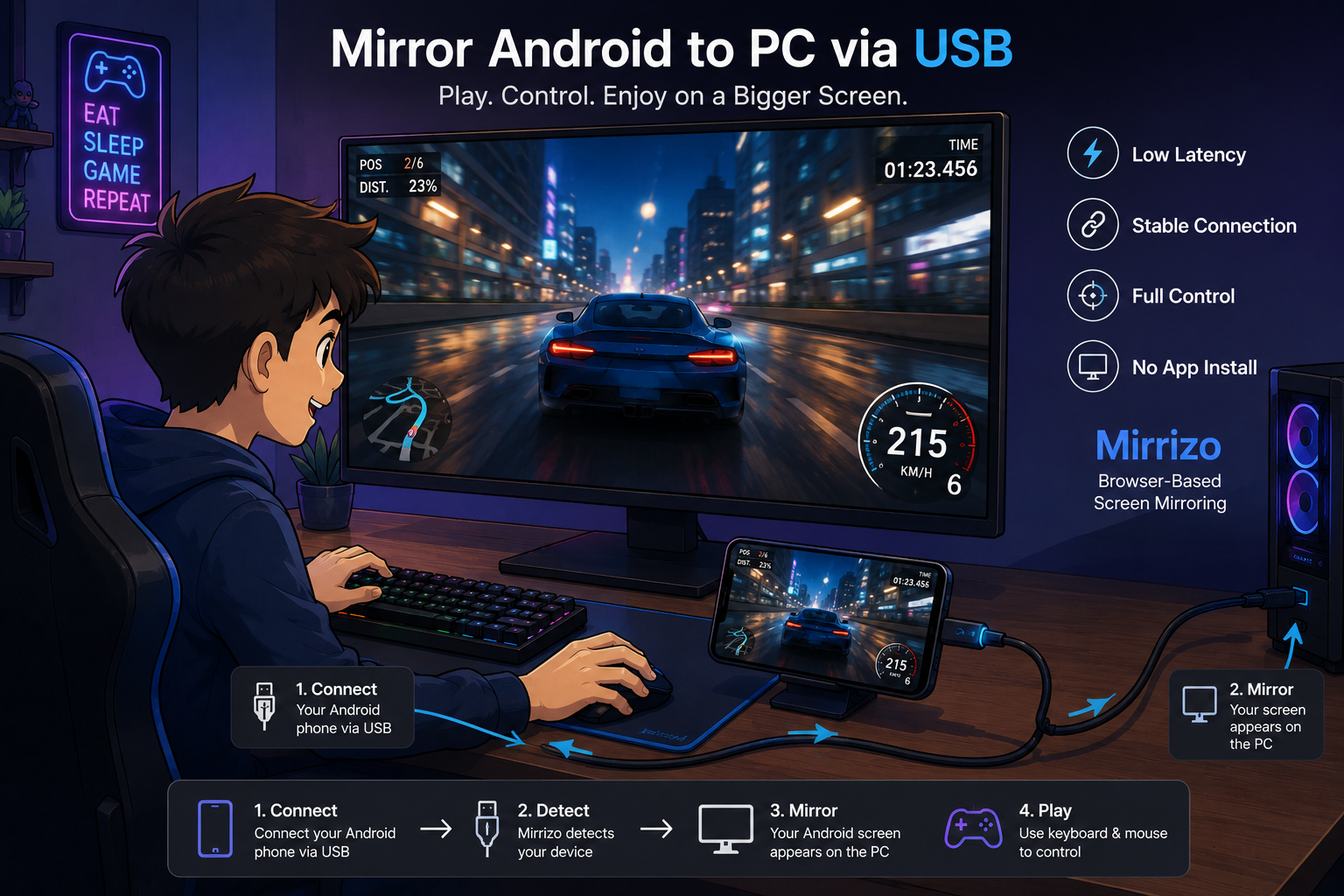
If you want to mirror your Android phone to a PC using USB, the good news is that it can be done without a complicated desktop setup. In 2026, many users want a faster, more stable, and more private way to view and control their Android device on a larger screen. USB-based android screen mirroring is still one of the best options because it is low-latency, reliable, and does not depend on unstable wireless performance.
In this guide, we will show you how to mirror Android to PC via USB, what settings you need to enable, and why browser based screen mirroring tools like Mirrizo are becoming a popular choice for users who want a simple experience.
Table of Contents
- Why use USB for Android screen mirroring?
- What you need before starting
- Step 1: Enable Developer Options
- Step 2: Enable USB Debugging
- Step 3: Connect your phone to the PC
- Step 4: Open a browser-based mirroring tool
- Step 5: Start mirroring
- Is USB mirroring better than Wi-Fi?
- Can you mirror Android to Windows 11?
- Common problems and fixes
- Why browser-based mirroring is a smart choice
- FAQ
- Conclusion
Why use USB for Android screen mirroring?
USB screen mirroring has several advantages over wireless methods:
- Lower latency
- More stable connection
- Better for gaming and productivity
- Less chance of disconnects
- No need to depend on Wi-Fi quality
If you use your Android phone for gaming, presentations, testing, or productivity, USB screen mirroring is often the best starting point.
What you need before starting
Before you connect your phone, make sure you have:
- An Android phone
- A USB cable that supports data transfer
- A Windows PC or laptop
- Android USB debugging enabled on your phone
If your cable only charges the phone and does not transfer data, screen mirroring will not work.
Step 1: Enable Developer Options
To mirror your Android phone to a PC via USB, you first need to turn on Developer Options.
- Open Settings on your Android phone.
- Go to About phone.
- Find Build number.
- Tap it 7 times until you see a message that says you are now a developer.
This unlocks advanced settings needed for USB debugging.
Step 2: Enable USB Debugging
After Developer Options is enabled:
- Go back to Settings.
- Open Developer options.
- Turn on USB debugging.
Your phone may show a security prompt. Tap Allow when asked. This step is required because screen mirroring tools need permission to communicate with the device over USB.
Step 3: Connect your phone to the PC
Now plug your Android phone into your computer using the USB cable. When you connect it:
- Your phone may ask to allow USB debugging
- You may need to confirm trust on the device
- Your PC should detect the phone
If the cable is good and USB debugging is on, the connection should be ready.
Step 4: Open a browser-based mirroring tool
This is where modern browser-based tools become useful.
Instead of installing heavy desktop software, you can mirror Android to PC without installing software by using a web-based platform.
Tools designed for ultra-low latency mean users can connect over USB, mirror the device, and control it without needing a traditional desktop app. This is perfect for users looking for screen mirroring without app install.
Step 5: Start mirroring
Once your phone is detected, click the connect button inside the mirroring tool.
After that, you should be able to:
- See your Android screen on the PC
- Use keyboard and mouse controls
- Interact with apps and games
- Keep everything in a browser window
This is especially useful for people who want a lightweight android screen sharing solution for daily use.
Is USB mirroring better than Wi-Fi?
For most users, yes.
USB mirroring is usually better when you want:
- Better stability
- Lower delay
- Smoother input
- Less connection loss
Wi-Fi mirroring can be convenient, but USB is often the better choice for gaming, testing, and anything that needs responsive control.
Can you mirror Android to Windows 11?
Yes.
To mirror android to windows 11 via USB works exceptionally well on both:
- Windows 10
- Windows 11
If your browser and USB debugging are set up properly, you can use a browser-based tool to connect the phone and display the screen on your PC.
Common problems and fixes
Phone not detected
Check that:
- USB debugging is enabled
- The cable supports data transfer
- You allowed the debugging permission on your phone
Screen not showing
Try:
- Reconnecting the cable
- Refreshing the browser
- Re-allowing USB debugging
- Using a different USB port
Input not working
Make sure the browser tab is active and the mirroring tool has permission to capture mouse and keyboard input.
Why browser-based mirroring is a smart choice
Browser screen mirroring is attractive because it removes unnecessary installation steps. That means:
- No heavy desktop app
- No complex setup
- No extra software clutter
- Easier access from different devices
This is the direction tools like Mirrizo are taking: fast, simple, and focused on usability.
Looking for an easier way to mirror Android to PC without installing desktop software?
Try Mirrizo, a browser-based Android screen mirroring tool that works directly in your browser with a USB connection.
Open MirrizoFinal thoughts
Mirroring Android to PC via USB is still one of the most practical ways to get a stable and responsive connection. If you need low latency, better control, and a simple setup, USB is the best place to start.
For users who want a modern browser-first experience, a browser-based Android screen mirroring approach offers a straightforward way to connect and control your device.
FAQ
What is the best way to mirror Android to PC?
USB mirroring is usually the best option for low latency and stability.
Do I need to install software?
Not always. Browser-based tools like Mirrizo can reduce or remove the need for desktop installation.
Does this work on Windows 11?
Yes, USB-based Android screen mirroring works on Windows 11.
Is USB debugging safe?
Yes, if you only allow trusted devices and use a tool you understand.
Can I mirror Android without an app install?
Yes, using browser based screen mirroring solutions like Mirrizo, you can share your screen without installing any desktop apps.
Why choose USB over Wi-Fi for screen mirroring?
USB screen mirroring offers lower latency, a more stable connection, and doesn't rely on your Wi-Fi network's performance.